
Guide to IDEP - International trade in services
In the reporting system IDEP, you can submit your data either manually or by uploading a file (data import).
For general guidance for IDEP such as third-party, nil declarations, etc., go to the generel page for IDEP (in Danish).
Important: You must have MitID Erhverv to be able to report through IDEP. Read more about MitID Erhverv.IDEP guides for International trade in services (monthly/quarterly)
In this guide, you can read how to report to International trade in services by manually entering data in IDEP.
If you are entering data in several rows, you can instead use the data import function in IDEP. This gives you the option to import different file types. You will find a guide concerning data imports from files here: Data import from file in IDEP.
You can also export your manually entered data to an Excel sheet, which can then be edited and uploaded as one of IDEP's standard formats (Excel Line). Read more about data exports at the end of this guide.
Important: You must have MitID Erhverv to be able to report through IDEP. Read more about MitID Erhverv.
Manual report to International trade in services (monthly/quarterly)
Start IDEPGo to the reporting site for International trade in services - monthly or International trade in services - quarterly . Click on Start reporting. You will then be asked to log in with MitID. Once you are logged in, you will automatically be redirected to the IDEP start page. |
|
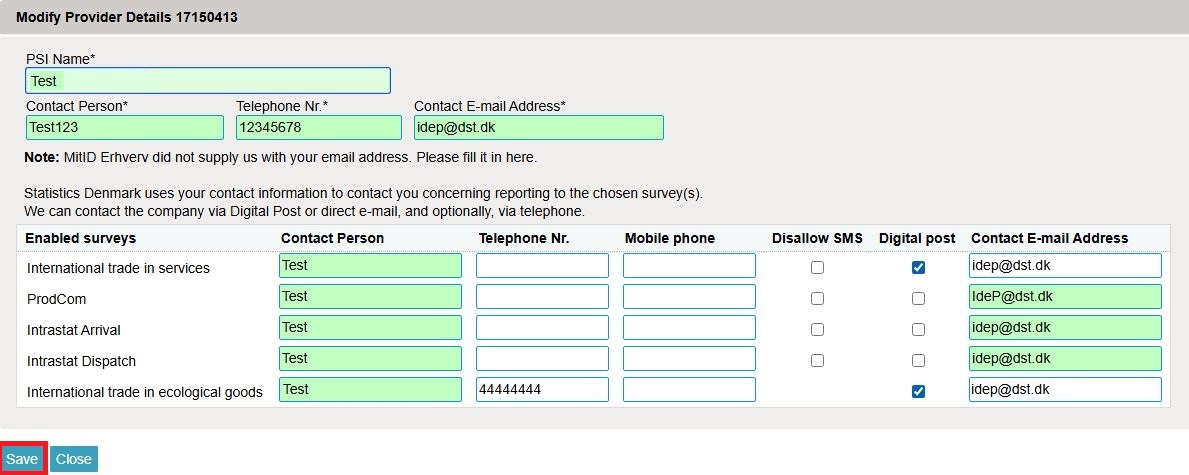
Enter provider detailsThe first time you log in, you must enter your provider details. All yellow fields must be filled out. The fields may be prefilled with information from Statistics Denmark. This information can be edited, or new information can be added. If you enter your mobile phone number, you will receive a text message/SMS with a reminder before the reporting due date. If you do not wish to receive the reminder, check the box Disallow SMS. If you wish to receive correspondence from Statistics Denmark through Digital Post, check the box Digital post. NB: The company name (PSI name) can not be changed. Finish by clicking Save. |
|
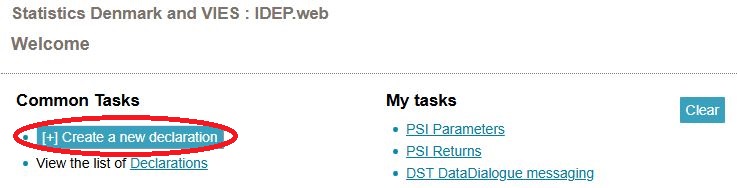
Create a declarationClick on [+] Create a new declaration on IDEP's start page. |
|
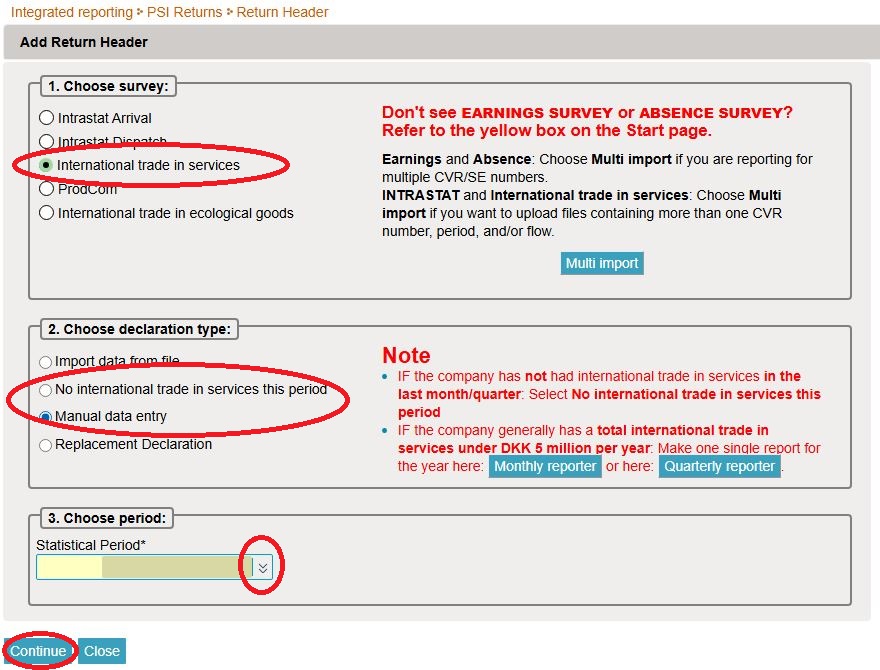
Create declaration headerSelect International trade in services. Select Manual data entry. Select No international trade in services during the period, if you have had no trade in services during the relevant period. Choose Statistical period by using the drop-down menu. Click Continue. |
|
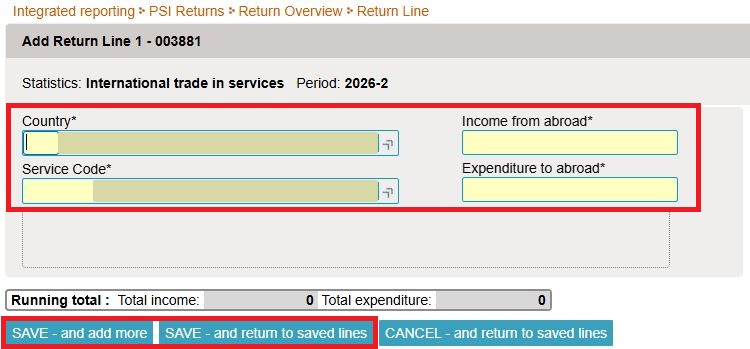
Filling out return linesFill out all yellow fields by using the drop-down menus or enter data manually. Click SAVE - and add more to create a new line. Click SAVE - and return to saved lines to approve and submit the declaration. |
|
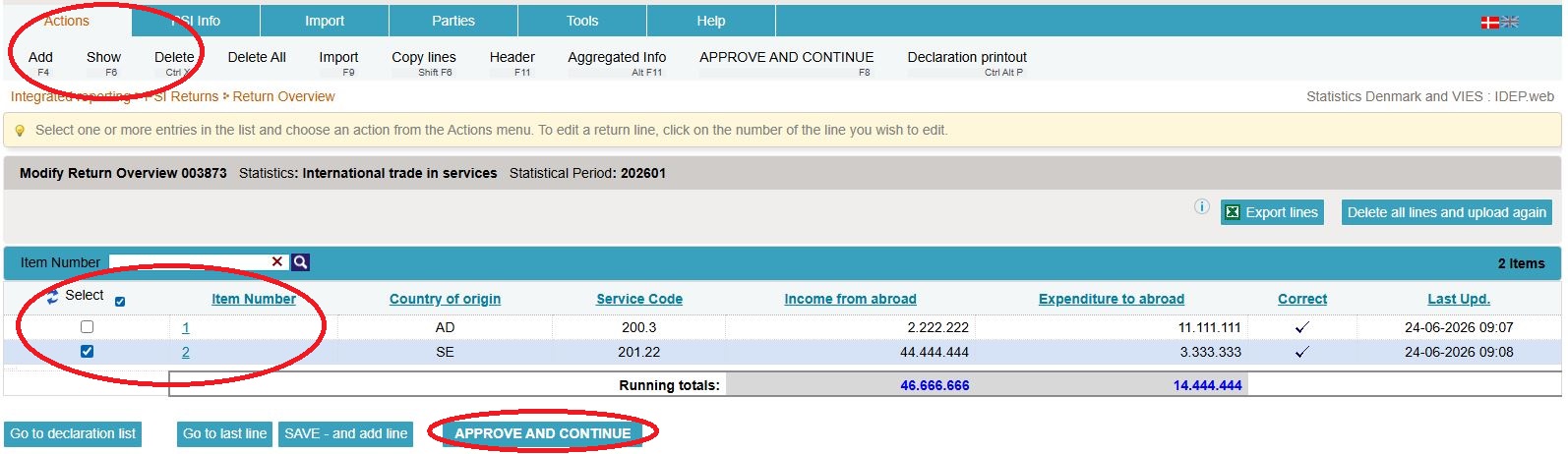
Approve declarationClick on the item number if you wish to edit a line. If you wish to delete a line, check the box to the left of the item number and select Delete in the Actions tab. Click SAVE - and add line or Add in the Actions tab if you wish to add a line to the declaration. Finally, click APPROVE AND CONTINUE to approve and submit the declaration. |
|
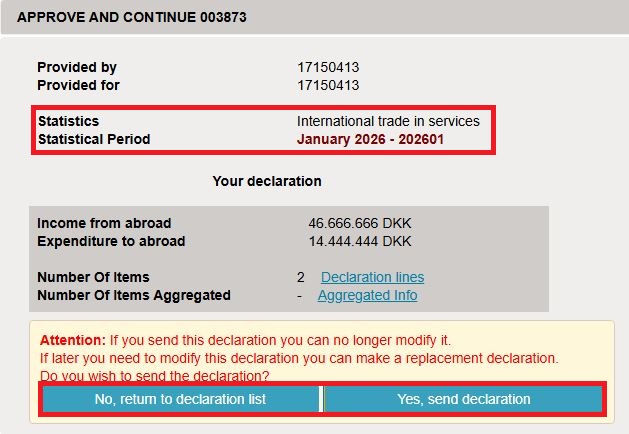
SummaryWhen you have clicked APPROVE AND CONTINUE, you will receive a summary of your declaration. Check whether the declaration is for the correct period. If the summary is correct click Yes, send declaration. If you wish to edit the declaration click No, return to declaration list. The receipt for the declaration will be sent to the mail address tied to your MitID. |
|
Important!Statistics Denmark will not have received your declaration until a check mark appears in the column Return Approved on the declaration list. |

|
This guide explains how to edit or replace a submitted declaration.
If you want to edit a submitted declaration, you can either edit individual lines manually or replace the entire declaration with a new version. In both cases, you must select Replacement declaration and finish by submitting the declaration again to submit your edits.
Below you will find guides for the following:
- Choose the declaration you want to replace or edit
- Edit, delete, or add individual lines
- Delete all lines and upload a new file with all the information
1. Choose the declaration you want to replace or edit
Create a replacement declarationClick on [+] Create a new declaration on IDEP's start page. |
|
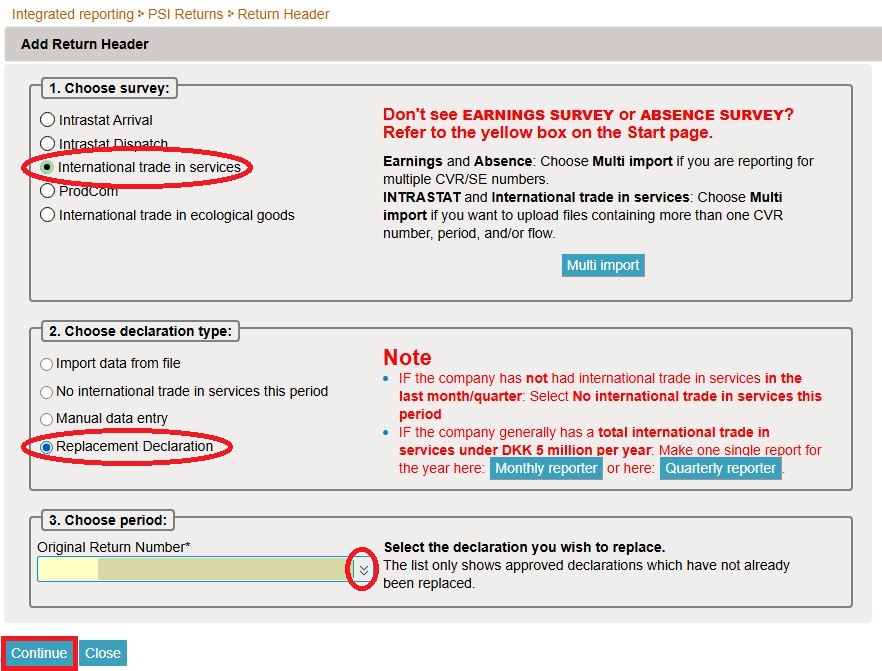
Choose primary informationFirst select the declaration type; in this case, International trade in services. Then select Replacement Declaration. Select the original return number/period in the drop-down menu. Click Continue. After this, a copy of your original declaration will open. Important: For instructions to upload a new file as replacement skip ahead to section '3. Delete all lines and upload a new file with all information' in this guide. |
|
2. Edit, delete, or add individual lines
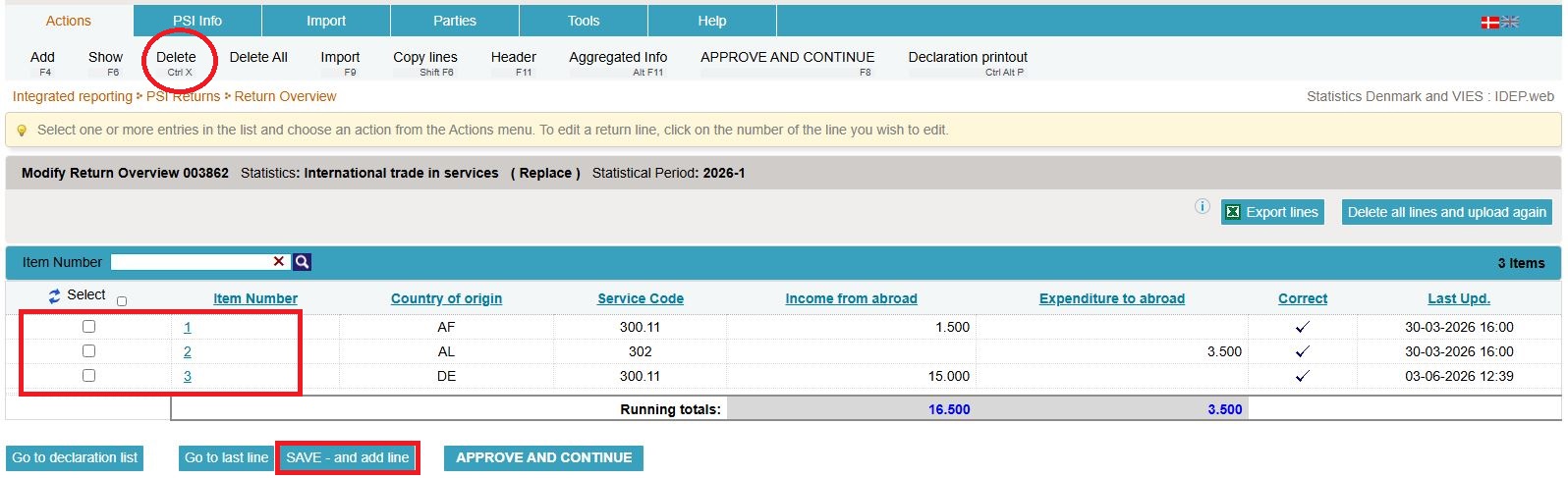
Manual editsClick directly on the relevant item number to edit an item line. Add an item line by clicking SAVE - and add line. Delete an item line by checking the box to the left of the item number, then select Delete in the Actions tab. |
|
|
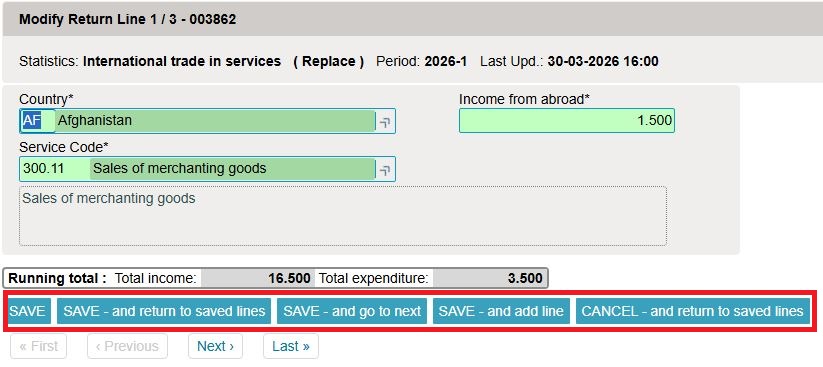
The item line will open when you click the relevant item number. Edit the item line and click SAVE - and go to next to continue to the next item line. You can also navigate between lines with the navigation buttons: First, Previous, Next and Last. Add a line by clicking on SAVE - and add line. Click SAVE - and return to saved lines when all edits are complete. Remember to approve and submit the declaration by following the next steps. |
|
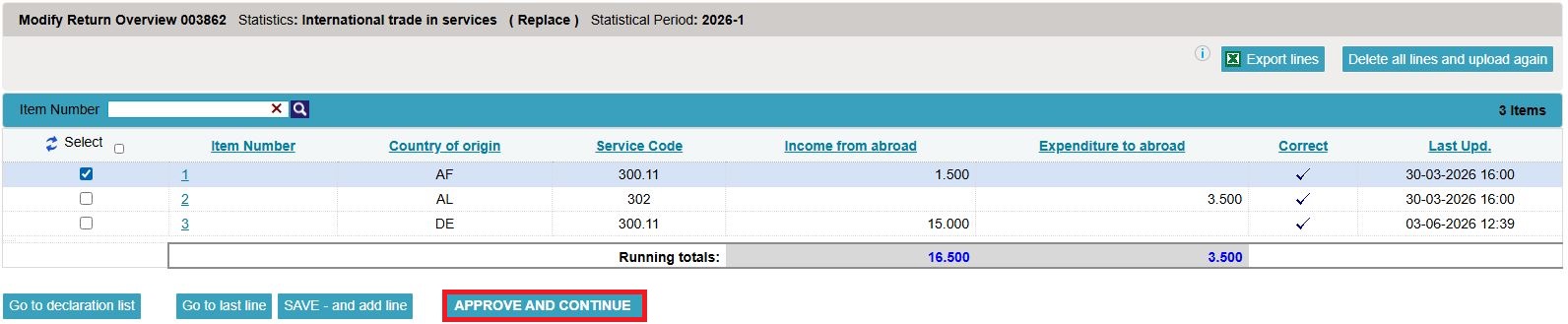
Item linesIn the Modify Return Overview you can view the lines in the replacement declaration. If they have been edited and are correct, click APPROVE AND CONTINUE to view a full summary and submit the declaration. |
|
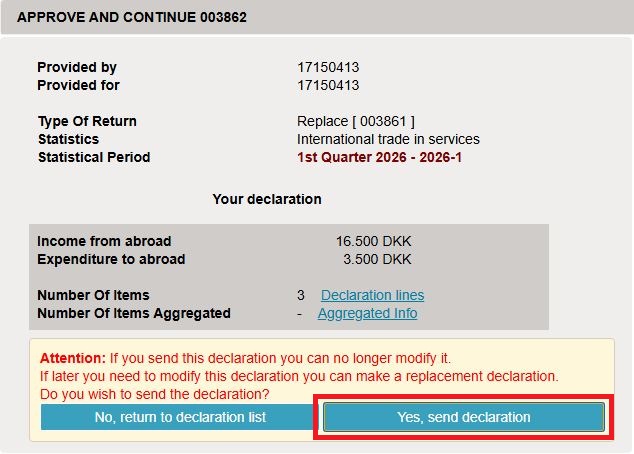
Declaration summaryThe summary gives you an overview over the replacement declaration. If everything is correct, click Yes, send declaration. |
|
List of declarationsOn the list of declarations, you can view your original declaration and replacement declaration(s). In the column Type, you can view the declaration numbers. Important: Your declaration has been correctly submitted when it is marked with a check mark in the column Return Approved on the declaration list.
|

|
3. Delete all lines and upload a new file with all the information
Upload a new fileIf you wish to upload a new file as replacement instead of editing the original lines, do as follows: Click Delete all lines and upload again when the replacement declaration opens. NB: You can choose to export the data to an Excel Line file, which can be edited and re-uploaded. Click on Export lines. Save the file on your PC. Edit, delete, or add data, and click Delete all lines and upload again to upload the file again. |
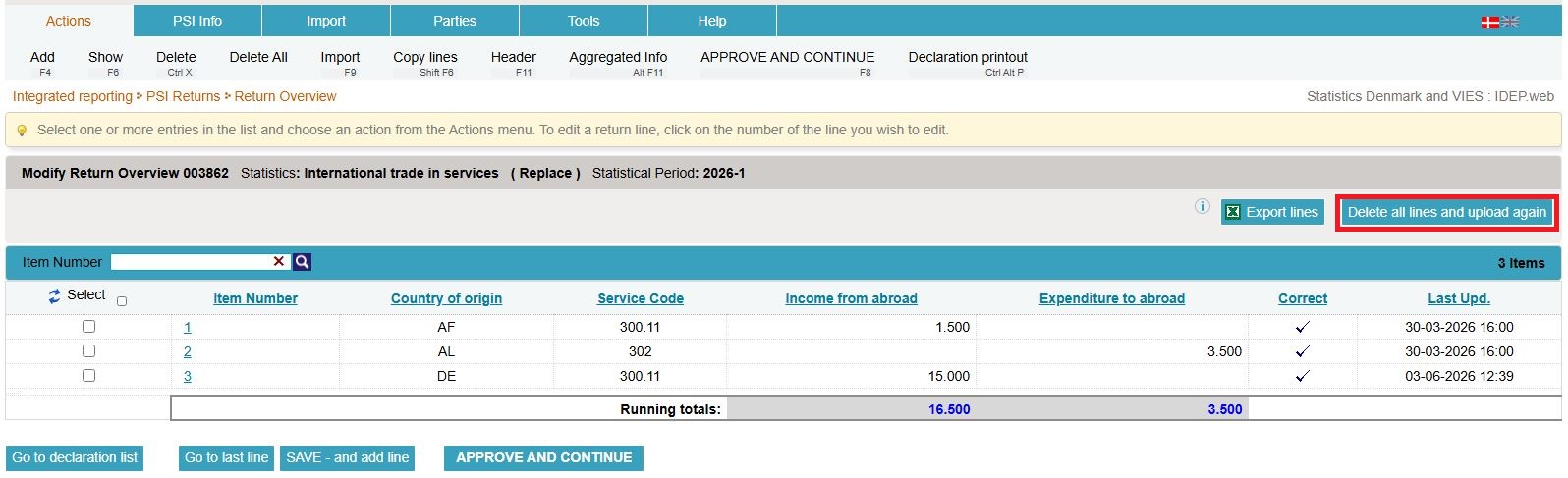
|
|
You can now upload a file as usual. If you have used Export lines in IDEP to export and edit the original declaration, select the import format UHT Excel Line from the drop-down menu. Remember to approve and submit the declaration. |
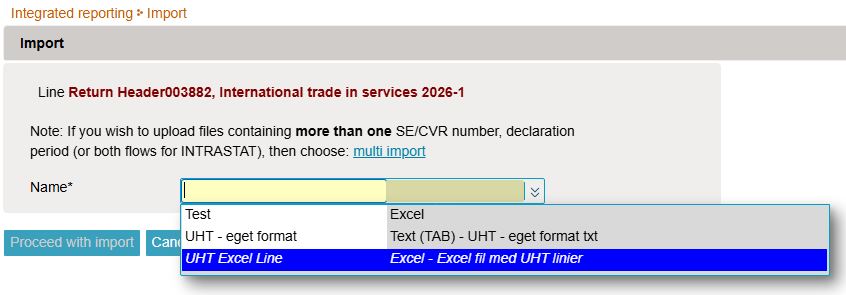
|
Declaration listIn the list of declarations, you can view your original declaration and any replacement declaration(s). In the column Type, you can see which declaration numbers they relate to. Approve and submit the declaration by clicking APPROVE AND CONTINUE and in the summery click
Yes, send declaration
.
|

|
This guide will describe how to import the UHT Excel Line file format for International trade in services in IDEP. The format can be used for both monthly and quarterly declarations.
Note: You must have MitID Erhverv to be able to report through IDEP. Read more about MitID Erhverv.
1. Start reporting
UHT Excel Line file formatDownload UHT Excel Line-file example The file example contains 3 sheets:
The sheet Data should contain the following columns: Column A: Country code – see country codes in the sheet Country. Column B: Service code – see codes in the tab Services. Column C: Income from Abroad. Column D: Expenditure from Abroad. When you click on a cell in the column Country code or Service code, you can use the drop-down menu in the cell to insert the relevant code. |
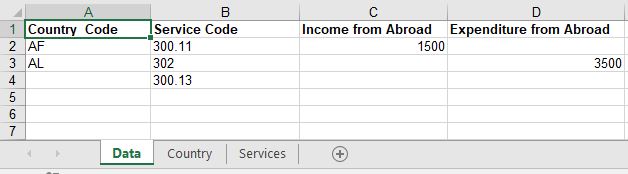
|
Start IDEPGo to the reporting site for International trade in services - monthly or International trade in services - quarterly and click on Start reporting. |
|
Enter provider detailsThe first time you log in, you must enter your provider details. All yellow fields must be filled out. The fields may be prefilled with information from Statistics Denmark. This information can be edited, or new information can be added. If you enter your mobile phone number, you will receive a text message/SMS with a reminder before the reporting due date. If you do not wish to receive the reminder, check the box Disallow SMS. If you wish to receive correspondence from Statistics Denmark through Digital Post, check the box Digital post. NB: The company name (PSI name) can not be changed. Finish by clicking Save. |
|
Upload fileClick on [+] Create a new declaration on IDEP's start page. |
|
Create declaration headerSelect International trade in services. Select Data import from file. Choose the statistical period from the drop-down menu. Click Continue. |
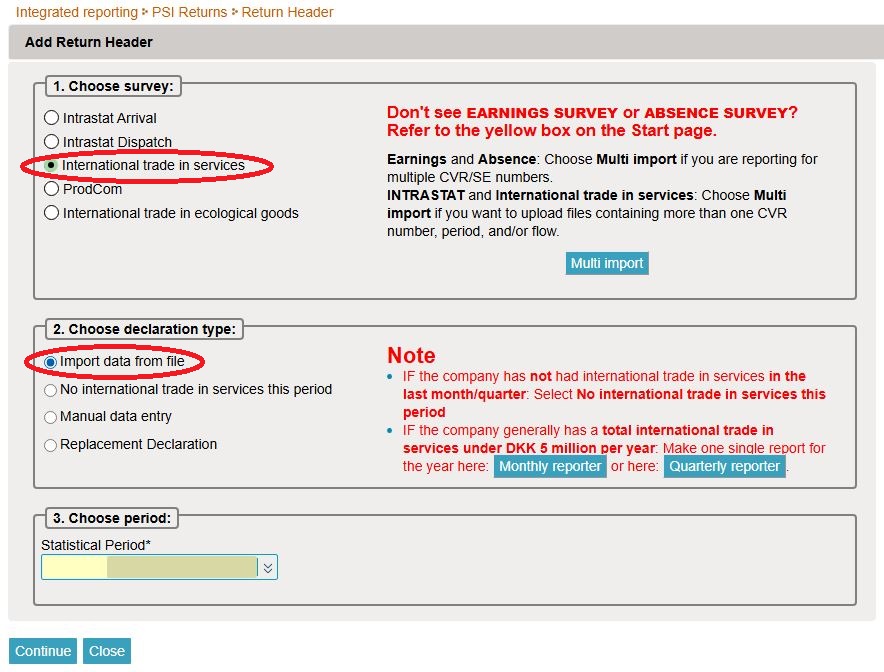
|
|
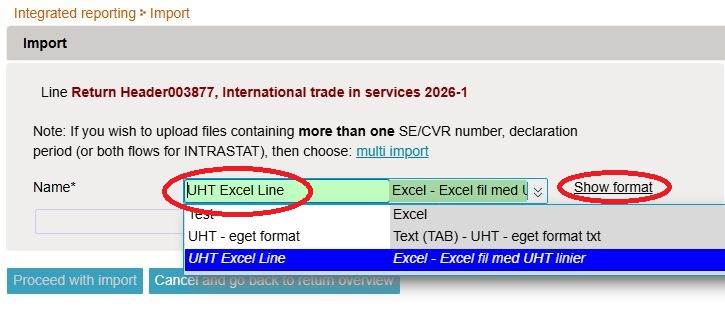
Choose the import format UHT Excel Line in the drop-down menu. |
|
|
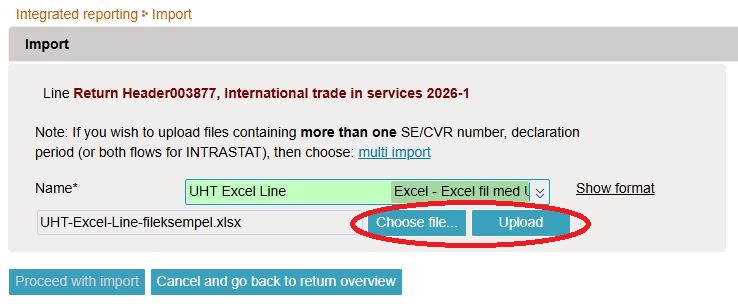
After this, click Search to locate your file and then Upload to import it. |
|
|
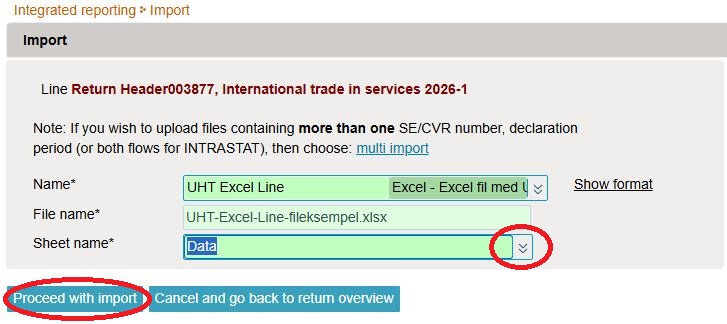
Choose Sheet name in the drop-down menu. Select the name of the sheet in the Excel file that contains the data. If you are using the file example from Statistics Denmark, the sheet is called Data. Click Proceed with import. |
|
|
The file will now be imported into IDEP. If the data is correct, the message Can be approved will appear in the column Status. Click Go to declaration list. In case of errors – see the section 2. Errors in your declaration. |

|
|
Click APPROVE AND CONTINUE to approve your declaration. |

|
Send declarationWhen you have clicked APPROVE AND CONTINUE you will receive a summary of your declaration. If summary is correct, click Yes, send declaration. If you want to edit the declaration, click No, return to declaration list. Receipt The receipt for the declaration will be sent to the e-mail address tied to your MitID. |
|
Important!Statistics Denmark will not have received your declaration until a check mark appears in the column Return Approved on the declaration list. |
|
2. Errors in the reporting
|
If there are errors in the reporting, the text Failure will appear in the Status column. Click on the word Failure to access the import log. |
|
|
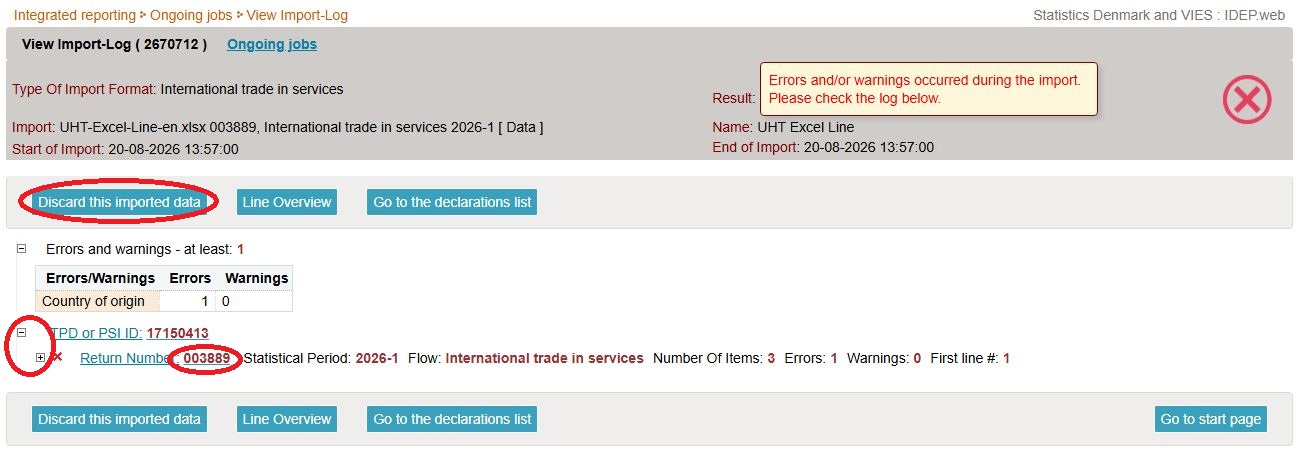
Click the plus/minus button on the left side of a line to view a detailed list of Errors and Warnings. Select Discard this imported data if you want to delete the reporting and upload it again. Click the return number to open your imported lines, or click a line number to go directly to the line containing an error. |
|
|
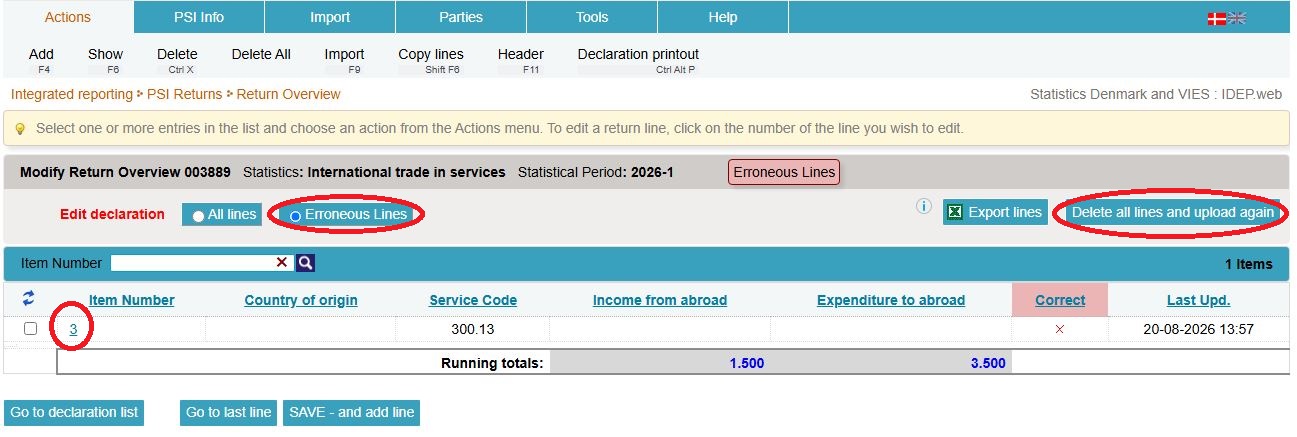
Select the Erroneous Lines option to display a list containing only error records. Click the first "Line no." to open the record. Click Delete all lines and upload again if you want to delete the uploaded data and re-upload and edited or new file. |
|
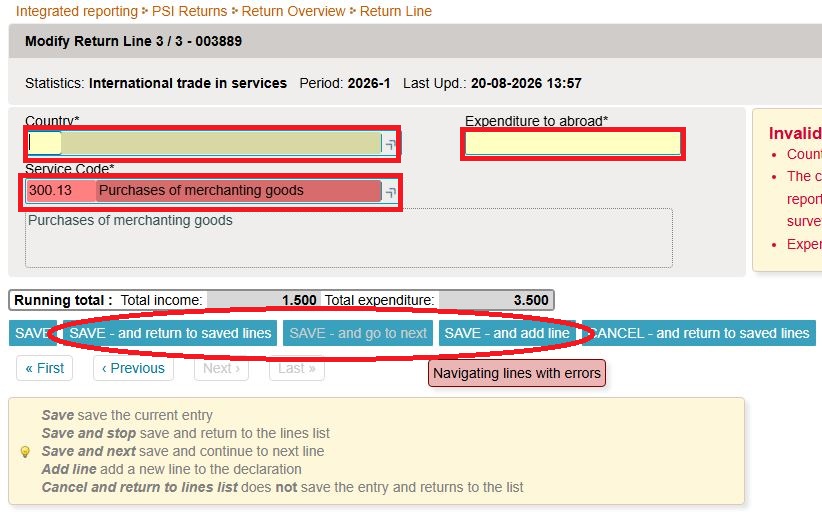
Editing linesRed/yellow fields must be corrected/completed so that they turn green. If the goods item should not be reported after all, select Delete in the Edit menu. Edit the record and click SAVE – and go to next to proceed to the next record, if further corrections are required. Click SAVE – and add new record if you want to add a record to your reporting. Click CLEAR – and view saved records to leave the record without saving changes. Click SAVE – and view saved records after the final correction. |
|
Send declarationYou can now approve your reporting by clicking the APPROVE AND CONTINUE button. When you have clicked APPROVE AND CONTINUE you will receive a summary of your declaration. If summary is correct, click Yes, send declaration. |
>
|
Important!Statistics Denmark will not have received your declaration until a check mark appears in the column Return Approved on the declaration list. |
|

This guide describes how to import the UHT Multi Excel file format into International trade in services in IDEP. The format can be used for both monthly and quarterly reporting.
Note: You must have MitID Erhverv in order to report via IDEP. Read more about MitId Erhverv.
1. Start reporting
UHT Multi Excel file format
The file example contains 3 sheets:
The sheet Data must contain the following columns: Column A: CVR number of the company being reported for. Column B: Period written as follows:
Column C: Service code – see the sheet Services Column D: Country code – see the sheet Country Column E:Income from abroad (Revenue) Column F: Expenditure from abroad (Expenses) When you click on a cell in the columns Country and Service code, you can use the drop-down menu to insert the relevant code. |
|
Start IDEPGo to the reporting site for International trade in services - monthly or International trade in services - quarterly . Click on Start reporting. |
|
Enter provider detailsThe first time you log in, you must enter your provider details. All yellow fields must be filled out. The fields may be prefilled with information from Statistics Denmark. This information can be edited, or new information can be added. If you enter your mobile phone number, you will receive a text message/SMS with a reminder before the reporting due date. If you do not wish to receive the reminder, check the box Disallow SMS. If you wish to receive correspondence from Statistics Denmark through Digital Post, check the box Digital post. NB: The company name (PSI name) can not be changed. Finish by clicking Save. |
|
Upload fileClick on [+] Create a new declaration on IDEP's start page. |
|
| Click on the blue Multi import button. |

|
|
Choose file format UHT Multi Excel using the drop-down menu. |

|
|
Click Chose file... to locate your file and click Upload to import it. |

|
|
Choose Sheet name using the drop-down menu and select the name of the worksheet in the Excel file that contains the data. If you use the sample file from Statistics Denmark, the sheet is called Data. Click on Proceed. |

|
|
The file is now imported into IDEP. If the data is correct, Can be approved will appear in the Status column. Click on Go to declaration list. If status is Failure – see the section Error in the report. |

|
|
Click the button APPROVE AND CONTINUE to approve the report. |
|
Submit reportWhen clicking APPROVE AND CONTINUEyou will see a resume of the report. If resume is correct click Yes, send declaration. If you wish to correct your report click No, return to declaration list. Receipt A receipt for the submission is sent to the email address associated with your MitID Erhverv. |

|
Important!Statistics Denmark will not have received your declaration until a check mark appears in the column Return Approved on the declaration list. |
|
2. Error in the report
|
If there are errors in the submission, Failure will appear in the Status column. Click the word Failure to go to the import log. |

|
|
Click the plus/minus button on the left side of a line to view a detailed list of Errors and Warnings. Select Discard this imported data if you want to delete the reporting and upload it again. Click the return number to open your imported lines, or click a line number to go directly to the line containing an error. |

|
|
Select the Erroneous Lines option to display a list containing only error records. Click the first "Line no." to open the record. Click Delete all lines and upload again if you want to delete the uploaded data and re-upload and edited or new file. |

|
|
Red/yellow fields must be corrected/completed so that they turn green. If the goods item should not be reported after all, select Delete in the Edit menu. Edit the record and click SAVE – and go to next to proceed to the next record, if further corrections are required. Click SAVE – and add new record if you want to add a record to your reporting. Click CLEAR – and view saved records to leave the record without saving changes. Click SAVE – and view saved records after the final correction. |

|
Send declarationYou can now approve your reporting by clicking the APPROVE AND CONTINUE button. When you have clicked APPROVE AND CONTINUE you will receive a summary of your declaration. If summary is correct, click Yes, send declaration.
|
|
Important!Statistics Denmark will not have received your declaration until a check mark appears in the column Return Approved on the declaration list. |
|

Extended deadline?
You can request an extension of the deadline via our support request form.
Request an extension: